What QuickBooks workflows can a small business automate?
Written by Mitch Crevier and Aarush Bhardwaj
7 min read
TL;DR
The QuickBooks workflows a small business should automate first are the ones a person repeats every week by reading QuickBooks and typing somewhere else: chasing overdue invoices, keeping a client or job status list current, collecting missing documents, and turning finished work into draft invoices. QuickBooks handles the steps that live entirely inside QuickBooks. The work that crosses into the inbox, the calendar, or a spreadsheet is where the hours go, and it can be automated on top of QuickBooks without migrating anything.
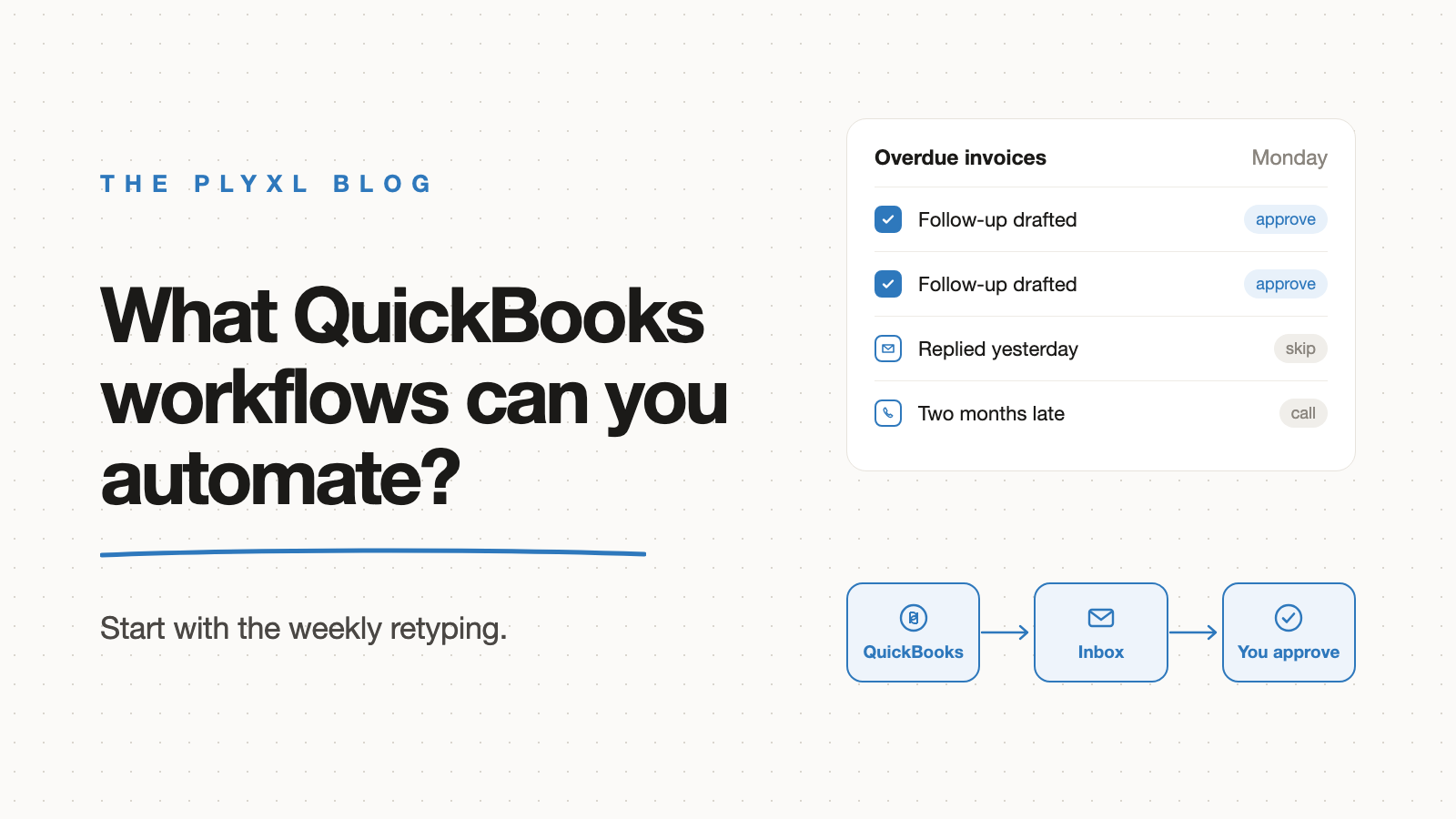
The QuickBooks workflows a small business should automate first are the ones a person repeats every week by reading QuickBooks and typing the result somewhere else: chasing overdue invoices, keeping a client or job status list current, collecting missing documents, and turning finished work into draft invoices. QuickBooks already handles the steps that live entirely inside QuickBooks. The hours go into the work that crosses from QuickBooks into the inbox, the calendar, or a spreadsheet.
Below is what QuickBooks covers on its own, which workflows are worth automating on top of it, and how a small business or accounting firm picks the first one.
What can QuickBooks automate on its own?
QuickBooks Online can automate the steps that start and finish inside QuickBooks: recurring invoices and bills, scheduled reminder emails for unpaid invoices, and bank rules that categorize matching transactions. These are settings, not projects, and every QuickBooks user should turn on the ones that fit before building anything else.
The limit of built-in features is the edge of QuickBooks. A reminder email from QuickBooks goes out on a schedule, the same way for every customer. It does not know that the customer called last week to say a check is in the mail, that the job was disputed, or that the office manager keeps a separate list of who gets a phone call instead of an email. That context lives in Gmail, in Google Calendar, and in a spreadsheet, which is exactly where the manual work sits.
Which QuickBooks workflows are worth automating?
The QuickBooks workflows worth automating are overdue-invoice chasing, client or job status tracking, document collection, and invoicing from finished work. Each one is a weekly loop where someone reads QuickBooks, checks another tool, and types an update or an email by hand.
| Workflow | What happens by hand today | What QuickBooks covers alone | What automating on top adds |
|---|---|---|---|
| Overdue-invoice chasing | Someone runs the A/R aging report, checks the inbox for replies, and writes follow-ups | Scheduled reminder emails, same for every customer | A ranked overdue list with context from the inbox, and a personal follow-up drafted for each |
| Client or job status | A spreadsheet updated by hand from QuickBooks every week | Reports, one customer or one report at a time | One live board across every client or job, read from QuickBooks directly |
| Document collection | Staff email clients for statements and receipts, then track replies in a sheet | Nothing; documents arrive by email | A list of who still owes what, with reminders drafted for approval |
| Invoices from finished work | The office copies completed jobs from the calendar into QuickBooks | Recurring invoices for fixed amounts only | Draft invoices created from finished jobs, reviewed before sending |
| Weekly cash summary | The owner logs in to check balances, open invoices, and bills due | Dashboard inside QuickBooks | A short summary in the inbox every Monday, built from QuickBooks data |
Each row starts from a sentence. "Every Monday, list QuickBooks invoices more than 30 days overdue, check Gmail for any reply from that customer, and draft a follow-up for the rest" is a complete description of the first version of an overdue-invoice chaser.
How does automated overdue-invoice chasing work?
Automated overdue-invoice chasing is an app that reads open invoices from QuickBooks, checks the inbox for recent replies from each customer, and drafts a follow-up only for the customers who have gone quiet. A person reviews the drafts and approves the batch.
The difference from a built-in reminder is judgment. A customer who replied yesterday does not get a second nudge. A long-standing customer who is two weeks late gets a friendly note, while one who is two months late gets flagged for a phone call. In Plyxl, nothing is sent until someone approves it, and every sent email is recorded in an activity log, where reversible changes can be undone. The security post covers why approval before action is the control to insist on.
Why do QuickBooks workflows cost so much time by hand?
QuickBooks workflows cost time by hand because each one forces a person to switch between QuickBooks, the inbox, and a spreadsheet, and the switching costs more than the typing. A Harvard Business Review study by Rohan Narayana Murty, Sandeep Dadlani, and Rajath B. Das tracked workers at three Fortune 500 companies and found they toggled between apps and websites nearly 1,200 times a day, losing just under four hours a week reorienting.
For accounting firms, the time matters for growth, not just tidiness. The 2024 CPA.com and AICPA PCPS Client Advisory Services Benchmark Survey, which collected data from 206 client advisory services practices, found that the practices that continuously invest in technology served 100 clients, compared with 67 across all respondents. Hours spent retyping QuickBooks into a status sheet are hours not spent on advisory work.
What does this look like in practice?
In practice, a business automates one QuickBooks workflow, runs it for a few weeks, and adds the next. Three illustrative examples, each a typical business rather than a specific customer:
- A 12-person HVAC company has an office manager who copies finished jobs from Google Calendar into QuickBooks every Friday. The company connects both tools and describes an app that creates a draft invoice for each completed job. The office manager reviews the drafts, fixes the one with a wrong part, and approves the rest. Friday afternoons stop being data entry.
- An eight-person bookkeeping firm chases clients for bank statements in the first week of every month. The firm connects QuickBooks Online and Gmail and builds a document chaser that lists which clients still owe which statements and drafts a reminder for each. A staff member approves the batch on Monday morning. The accounting firm apps post walks through this app and three others.
- A landscaping company has an owner who logs into QuickBooks every evening to see who has paid. The company builds an overdue-invoice list that checks the inbox for replies and drafts follow-ups for the customers who have gone quiet. The owner checks one screen twice a week instead of QuickBooks every night.
None of these businesses replaced QuickBooks or moved a single record out of it.
How do you pick the first QuickBooks workflow to automate?
Pick the QuickBooks workflow that one person repeats every week by reading QuickBooks and retyping the result somewhere else. That loop is the most expensive per hour and the most fragile, because it stops the week that person is out.
Two questions sort the candidates: how often does the task happen, and what breaks when it is skipped? For most small businesses the answer is overdue-invoice chasing, because skipping it delays cash. For accounting firms it is usually client status or document collection. The broader list of first tasks to hand off is in what a small business should automate first, and the tools a workspace can read from are on the connections list.
Plyxl is a business workspace: connect the tools your business runs on, then build the software you need on top. QuickBooks connects with one OAuth sign-in, an app builds from a description in about a minute, and nothing is sent or changed without approval. The Free plan needs no card, and pricing has the details. Start at plyxl.com, connect QuickBooks and your inbox, and describe the weekly task you would most like to stop doing by hand.
Frequently asked questions
Can QuickBooks automate invoice reminders on its own?
Yes. QuickBooks Online can send scheduled reminder emails for unpaid invoices. What it does not do is decide who should get a personal note, draft that note from the customer's history, or show the whole overdue list beside the rest of the business.
Do I need a developer to automate QuickBooks workflows?
No. Inside QuickBooks, recurring transactions, reminders, and bank rules are settings. For workflows that cross into Gmail or a spreadsheet, a business workspace can build the app from a one-sentence description once QuickBooks is connected.
Is it safe to let software act on my QuickBooks data?
It is safe when the software connects through OAuth instead of your password, waits for a person to approve anything it sends or changes, and keeps an activity log with undo. Start with an app that only reads.
Which QuickBooks workflow should I automate first?
Automate first the task one person repeats every week by reading QuickBooks and retyping it somewhere else. For most small businesses that is chasing overdue invoices; for accounting firms it is usually client status or document collection.
Does automating QuickBooks workflows mean replacing QuickBooks?
No. QuickBooks stays the system of record for the books. The automated workflow reads from it and, with approval, writes drafts back to it, so nothing is migrated.