What should a small business automate first?
Written by Mitch Crevier and Aarush Bhardwaj
7 min read
TL;DR
A small business should automate first the work that happens often, follows the same steps every time, and consists of moving information from one tool to another: chasing overdue invoices, turning form submissions into customers, sending appointment reminders, and building a morning briefing. These tasks are low risk, easy to check, and quietly eat hours every week. Automations that make judgment calls or move money come later, and every automation should wait for approval before it acts until it has earned trust.
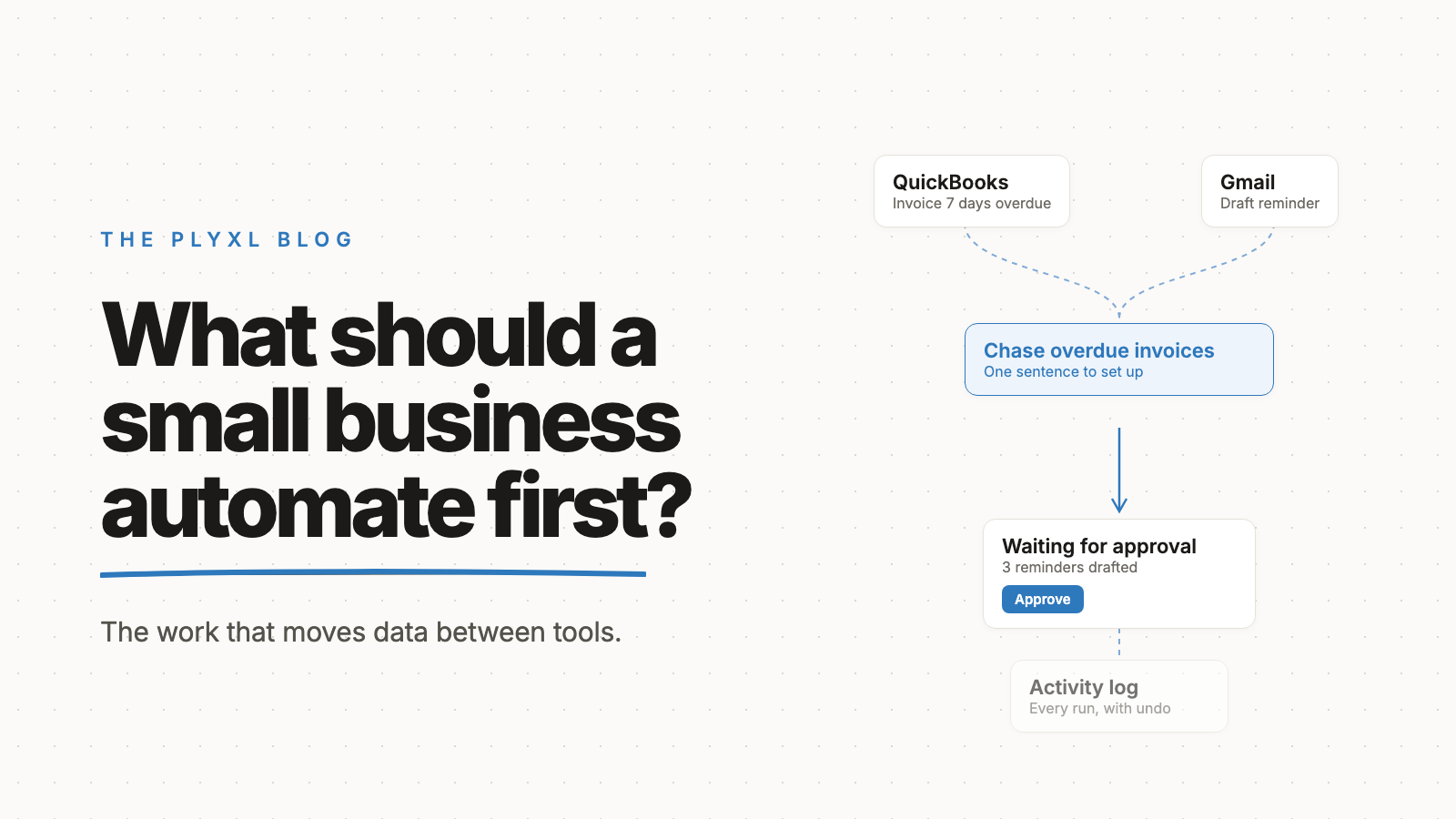
A small business should automate first the work that happens often, follows the same steps every time, and consists mostly of moving information from one tool to another. Chasing overdue invoices, turning form submissions into customer records, sending appointment reminders, and assembling a morning briefing all fit that description. They are low risk, easy to check, and quietly cost hours every week.
Below are ten automations worth setting up first, a table comparing them, and three worked examples of what the first month looks like.
How do you decide what to automate first?
The best first automation is a task that is frequent, identical every time, and easy to check when it goes wrong. Frequency decides how much time it gives back. Sameness decides whether a rule can do it at all. Checkability decides how safe it is to hand over.
Randall Munroe's well-known xkcd chart "Is It Worth the Time?" makes the frequency point visually: it maps how often a task happens against how much time automating it saves, to show how long you can spend automating before you lose more time than you gain. A task done daily is worth far more setup effort than one done once a quarter.
A useful test is to ask, of any task: "Does someone copy information from one tool into another to do this?" If yes, it is a candidate. That copying is where SaaS sprawl costs a small business the most.
What are ten automations a small business should set up first?
Ten automations cover most of the repetitive work at a typical small business, and each can be described in one sentence.
- Overdue invoice chasing. "When a QuickBooks invoice is seven days overdue, draft a polite reminder in Gmail to the customer with the invoice attached."
- Form to customer. "When an intake form comes in, create the customer in QuickBooks and draft a welcome email."
- Morning briefing. "Every weekday at 7am, send me today's calendar, yesterday's payments, and anything overdue."
- Appointment reminders. "The day before each Google Calendar appointment, email the customer a reminder with the time and address."
- New lead follow-up. "When a new contact lands in HubSpot, draft a reply within the hour and assign it to whoever is on sales this week."
- Missing documents chaser. "Every Monday, email each client who still owes us documents a list of what is missing."
- Payment thank-you. "When a Stripe payment clears, mark the invoice paid and send a short thank-you."
- Review request. "When a job is marked complete, wait two days and ask the customer for a review."
- Weekly cash snapshot. "Every Friday, summarize money in, money out, and outstanding invoices from Xero."
- Order to bookkeeping. "When a Shopify order is refunded, flag it for the bookkeeper with the order details."
None of these require new software. Each one reads from or writes to a tool the business already pays for.
How do these automations compare?
These ten automations differ mainly in how much they change and how much risk they carry, which decides the order to set them up in.
| Automation | Trigger | Tools involved | Changes records? | Start with approval? |
|---|---|---|---|---|
| Morning briefing | Schedule | Calendar, QuickBooks, Gmail | No | Not needed |
| Weekly cash snapshot | Schedule | Xero or QuickBooks | No | Not needed |
| Appointment reminders | Calendar event | Google Calendar, Gmail | No | Yes, first week |
| Missing documents chaser | Schedule | Gmail, client list | No | Yes |
| Review request | Job complete | Gmail | No | Yes |
| New lead follow-up | New contact | HubSpot, Gmail | Assigns owner | Yes |
| Overdue invoice chasing | Invoice overdue | QuickBooks, Gmail | No | Yes |
| Form to customer | Form submitted | Form, QuickBooks, Gmail | Creates customer | Yes |
| Payment thank-you | Payment cleared | Stripe, QuickBooks | Marks invoice paid | Yes |
| Order to bookkeeping | Refund issued | Shopify | No | Not needed |
Read-only automations, like the briefing and the cash snapshot, are the safest place to start. Automations that send email to customers or create records come next, with a person approving each run before anything is sent or changed.
Why does automating small tasks matter so much?
Automating small tasks matters because the cost of a business's tools is mostly in the switching between them, not in any single task. A Harvard Business Review study by Rohan Narayana Murty, Sandeep Dadlani, and Rajath B. Das tracked workers at three Fortune 500 companies and found they toggled between apps and websites nearly 1,200 times a day, losing just under four hours a week reorienting.
Every automation on the list above removes a set of those switches. A reminder that sends itself is one fewer trip from the calendar to the inbox. At a small business, the person making those trips is often the owner.
What should a small business not automate?
A small business should not automate decisions that depend on judgment about a specific customer or a specific amount of money. Quoting a custom job, handling a complaint, offering a discount, or writing off a debt all belong with a person.
The useful middle ground is to automate the preparation for those decisions. An automation can pull a customer's payment history before a collections call, or gather past job costs before a quote, so the person deciding starts with the facts instead of four open tabs.
What does automating first look like in practice?
In practice, a small business's first month of automation is two or three read-only automations, then one that acts, with approval switched on. Three illustrative examples, each a typical business rather than a specific customer:
- A 12-person HVAC company starts with a morning briefing that lists the day's jobs from Google Calendar and any overdue invoices from QuickBooks. After a week it adds appointment reminders, drafted automatically and approved by the office manager each morning. Approving the batch takes a minute, and nobody types a reminder by hand anymore.
- An eight-person bookkeeping firm sets up the missing documents chaser first, because chasing clients is the task every partner dislikes most. Each Monday the workspace drafts one email per client listing what is outstanding, and a partner approves the batch. More on what a firm like this can build in apps an accounting firm can build in a day.
- A six-person landscaping company automates form to customer. When a quote request arrives, the customer is created in QuickBooks and a welcome email is drafted, and nothing runs until the owner approves it from a phone. The activity log shows every customer created, with undo if one was wrong.
How do you set up automations without a developer?
You set up automations without a developer by connecting the tools your business already uses and describing each automation in plain language. Trigger-and-action tools like Zapier work by assembling steps one at a time. A business workspace takes a different approach: each tool is connected once through its own sign-in, and an automation is written as a sentence, like the ten above.
Three safeguards matter more than the setup method. An automation should wait for approval before it acts, every run should be recorded in an activity log, and anything it did should be possible to undo. The connections list shows which tools connect, and what a business workspace is explains the layer that sits on top.
Plyxl is a business workspace: connect the tools your business runs on, then build the software you need on top. The Free plan needs no card, and pricing has the details. Start at plyxl.com, connect one tool, and describe the first task you never want to do by hand again.
Frequently asked questions
What is the easiest thing for a small business to automate?
Appointment reminders and a morning briefing are usually the easiest. Both read from tools the business already uses, like Google Calendar and QuickBooks, and neither changes any records, so there is little that can go wrong.
Should a small business automate customer emails?
Yes, for routine emails like reminders, welcome messages, and payment follow-ups. Draft them automatically and have a person approve them before they send, so a wrong name or amount never reaches a customer.
What should a small business not automate?
Anything that needs judgment about a specific customer, like pricing a custom job, handling a complaint, or deciding to write off a debt. Automate the information gathering around those decisions, not the decisions themselves.
Do I need Zapier to automate my small business?
No. Zapier is one option for connecting tools with triggers and actions. A business workspace is another: the tools connect once, and automations are described in a sentence rather than assembled step by step.
How do I know an automation is working?
Check the activity log for the first few weeks. Every run should show what triggered it, what it did, and in which tool, and anything wrong should be possible to undo.